The Gap Between “Generated” and “Designed”
There is a distinct visual gap in the current wave of AI-generated web development. While tools like v0 or standard LLM prompting can produce functional code, the output often suffers from a generic, “bootstrapped” aesthetic. It lacks the polish, the intentionality, and the immersive user experience found in premium SaaS products.
This case study dissects a high-level workflow that bridges that gap. By treating the AI (specifically Cursor) not as a magic wand but as a junior developer requiring precise documentation, it is possible to build a $5,000+ quality landing page—complete with 3D assets, glassmorphism, and complex interactions—in a fraction of the standard development time.
The core philosophy here is Context Injection. Before writing a single line of code, the developer must construct a “brain” for the project.
Phase 1: The Definition Layer
An AI cannot hallucinate a brand identity; it must be given one. The framework begins outside the code editor, strictly in the planning phase.
1. The Project Brief
This is the foundational document. It does not contain code. It contains the “Why” and the “Who.”
- Product Definition: What is being built? (e.g., Guardian AI, an infrastructure security SaaS).
- Target Audience: Developers, DevOps, CTOs.
- Goal: Drive documentation reads and sign-ups.
- Core Vibe: Trust, technical credibility, dark mode, “blazing fast.”
2. Granular Content Preparation
A common mistake is asking AI to “write text for the hero section.” This leads to generic marketing fluff. Instead, create a separate document (Google Doc or Notion) containing the exact copy for every section:
- Hero: Headline, subheadline, CTA button text.
- Trust Bar: List of company logos.
- Features: Specific technical claims (e.g., “SOC2 Type II Certified”).
3. The “Frankenstein” Moodboard
This is the most critical visual step. The workflow utilizes a three-tier moodboard approach:
- Tier 1: General Vibe. Screenshots of 3-5 reference sites that capture the overall aesthetic (e.g., dark, neon accents, distinct typography).
- Tier 2: Component References. Specific screenshots of UI elements (e.g., “I want this exact pill-shaped button from site X” or “I want this bento grid layout from site Y”).
- Tier 3: 3D/Interactive Specs. Links to specific Three.js examples or Spline scenes.
Phase 2: Structuring Context in Cursor
Once the definition phase is complete, the data must be formatted in a way Cursor can ingest and reference repeatedly. This involves a specific folder structure within the IDE.
File Structure Setup:
Create a root folder named website-guidelines. Inside, create the following Markdown files:
product-brief.md
Copy the project definition from Phase 1. This gives the AI the “mission statement.”
section-specs/ (Folder)
Create a separate .md file for each section of the landing page (e.g., 01-hero.md, 02-features.md).
- Content: Paste the exact text copy.
- Design Instructions: Describe the layout explicitly. (e.g., “Use a 7-card bento grid with glowing borders on hover.”)
- Component Code: If you find a component you like on a library like shadcn/ui or 21st.dev, copy the raw React code and paste it here.
- 3D Code: If using a Three.js spotlight effect, paste the example code block here so the AI has the exact syntax to implement.
style-guide.md (The Single Source of Truth)
This document governs the aesthetic. It prevents the AI from improvising colors or fonts.
- Color Palette: Define CSS variables for primary, secondary, and accent colors (e.g., #01FFFF for a cyan glow).
- Typography: Specify font families (e.g., Satoshi, Instrument Serif).
- Spacing: Define the base unit (e.g., 8px grid).
- Rules: Explicit “Do’s and Don’ts” (e.g., “Never use pure black background, use #0A0A0A”).
project_requirements.md (The PRD)
This acts as the technical manual for the “Junior Developer” (the AI).
- Tech Stack: Next.js 14, TypeScript, Tailwind CSS, Framer Motion, Three.js.
- File Structure: Define how the codebase should be organized.
- Governance: Rules for updates (e.g., “Do not duplicate content from style guide, reference it”).
Phase 3: The Execution Workflow
With the “brain” built, the coding process shifts from “generating” to “assembling.”
Step 1: Initialization
Open the Cursor chat (Cmd+L) and reference the PRD:
“Based on project_requirements.md and style-guide.md, initialize the project, install dependencies, and set up the folder structure.”
Step 2: The tasks.md Automation
Create a tasks.md file in the root. This file tracks progress.
- List every section to be built.
- Use checkboxes.
- Prompt Cursor: “Read tasks.md. Start building Phase 1.”
- Note: This keeps the AI focused on one objective at a time, reducing context window exhaustion.
Step 3: Component-Level Building
When building a complex section like the Hero, specific instructions are required.
Example Prompt for Hero Section:
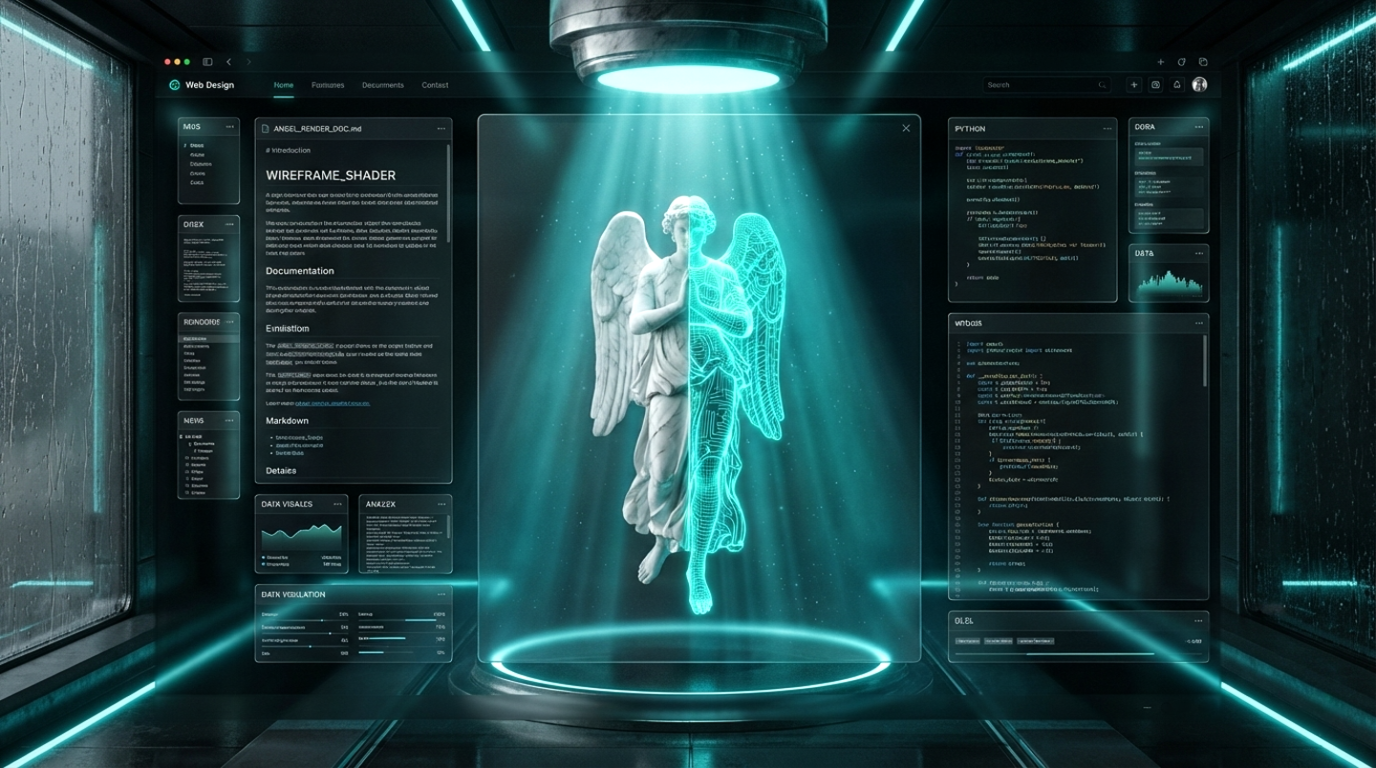
“Build the Hero section based on website-sections/hero.md. Use the provided Three.js code for the spotlight effect. Ensure the angel statue allows for 360-degree rotation. The background should be transparent to blend with the global dark theme.”
Step 4: The 3D Integration (Three.js)
For premium interactions, static images aren’t enough. The workflow demonstrates integrating a .glb model (e.g., a marble angel) using React Three Fiber.
- Source: Sketchfab or Three.js examples.
- Implementation: The AI is given the exact rendering code in the markdown file, so it doesn’t need to guess the lighting or camera positioning. It simply adapts the provided snippet to the Next.js component structure.
Phase 4: The Refinement Loop
The first pass is rarely perfect. The final step is iterative refinement using “Visual Debugging.”
Common Issue: Z-Index and Blending
- Problem: The 3D canvas sits on top of the navigation bar, blocking clicks.
- Fix: Take a screenshot of the issue, drag it into Cursor, and prompt: “The nav bar is not clickable because the canvas is overlaying it. Adjust the z-index and ensure pointer-events are set to none on the canvas container.”
Common Issue: Contrast
- Problem: The marble base of the statue is too dark against the background.
- Fix: “Increase the ambient lighting intensity in the Three.js scene to make the base details visible.”
Updating the Docs
If a design decision changes during the build (e.g., changing the primary button radius), update the style-guide.md immediately. This ensures that subsequent sections generated by the AI adhere to the new rule, maintaining consistency across the site.
Summary of Tech Stack
This workflow relies on a specific modern stack to achieve the “high-end” look:
- Framework: Next.js 14 (App Router)
- Styling: Tailwind CSS
- Animation: Framer Motion
- 3D: React Three Fiber / Drei
- Components: shadcn/ui + 21st.dev (community components)
By front-loading the effort into documentation and context gathering, the actual coding phase becomes a rapid assembly process, resulting in a product that looks bespoke rather than algorithmic.