You don’t need a budget to make a game look beautiful. You don’t need modeling skills. You don’t even need to pay for assets.
Most indie developers fail at visuals because they treat assets like LEGO bricks—they just snap them together and hope it works. The result is a mismatched, “asset-flip” aesthetic that screams amateur.
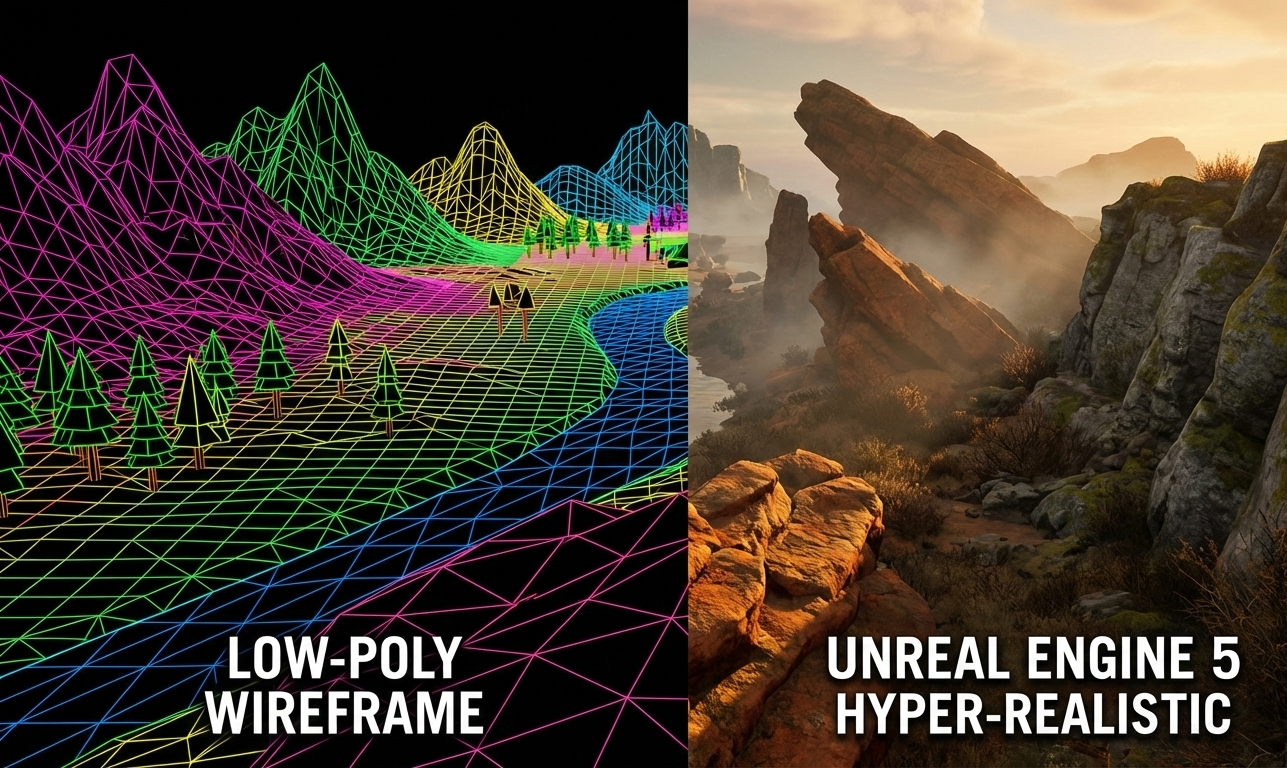
But if you understand the core principles of Color Theory, Lighting, and Atmosphere, you can take the ugliest, lowest-poly free assets on the Unity store and turn them into a cohesive, AAA-quality scene.
This tutorial breaks down the exact workflow used to replicate the iconic boat scene from Half-Life 2 using nothing but junk assets and smart direction.
Phase 1: The Skybox & Color Palette (The Foundation)
The biggest mistake devs make is picking colors randomly. Instead, start with your skybox. This dictates the entire mood of your game.
The Workflow:
- Find a Skybox: Download a free, high-res 360 panoramic image (e.g., storm clouds).
- Sample the Palette: Open the skybox in Photoshop. Use the eyedropper tool to pull out the dominant colors (e.g., a rusty orange, a murky grey-green, a slate grey).
- Create Swatches: These 3-4 colors are now your “bible.” Every single texture in your game must be tinted or adjusted to match these specific hex codes.
Phase 2: Atmosphere over Detail
You can hide bad geometry with good lighting. If your assets are low-poly, lean into it by creating a heavy atmosphere.
- Directional Light: Set it to a warm, low angle (evening sun). Avoid pure white light; tint it slightly orange or yellow to match your palette.
- Fog is Your Friend: Enable fog in Unity’s Lighting tab. Pick a color directly from your skybox. This blends distant objects into the background, hiding low-detail areas and creating depth.
- Shadows: Crank up shadow strength but soften the edges. Hard shadows often reveal low-poly jagged edges.
Phase 3: Texture Unification (The “Photoshop Fix”)
Free assets never match. One rock will be photo-realistic, another will be cartoony. This breaks immersion.
The Fix:
- Open every texture (rocks, grass, wood) in Photoshop.
- Desaturate: Strip the original color.
- Recolor: Use a Hue/Saturation or Color Overlay layer to tint the texture using your specific color palette from Phase 1.
- Result: Now, your photo-realistic rock and your low-poly grass share the exact same color DNA. They look like they belong in the same world.
Phase 4: Composition as a Director
Stop thinking like a level designer and start thinking like a film director.
- Framing: Use trees and large rocks to frame the player’s path. Don’t just scatter them randomly.
- The “Tree Line” Trick: If your horizon looks empty, create a simple billboard tree texture. Duplicate it hundreds of times along the ridges. It’s cheap on performance but makes the world feel massive and enclosed.
- Set Pieces: Place a large, distinct object (like a rusty tower or a train car) in the distance. This gives the player a focal point and a sense of scale.
Phase 5: The “Pop” of Color
If everything is grey and brown, your game looks boring. You need contrast.
Go back to your color palette. Find that one outlier color—maybe a vibrant teal or a deep rust orange. Apply this color sparingly to key elements like:
- Roofs of buildings.
- Industrial pipes.
- Specific foliage or flowers.
This guides the player’s eye and breaks the monotony of the landscape without ruining the cohesive look.
The Result
By following this protocol, you aren’t just placing assets; you are curating a scene. You are taking disparate, free garbage and unifying it under a single artistic vision. That is the difference between an asset flip and an indie gem.