We are moving past simple blog automation. This is Pure Content Farming.
If you are still writing articles by hand, or even manually prompting ChatGPT for every single H2 header, you are operating on deprecated hardware. The goal is simple: High volume, high relevance, zero human interference.
We have stripped out the bloat from previous versions. We dropped Leonardo.Ai for Nano Banana (via Gemini) to slash costs. We integrated a Brand Mascot system for visual consistency. We optimized the vector database to save MongoDB credits. And most critically, we engineered a Memory Loop so the AI remembers what it wrote in the introduction so it doesn’t sound lobotomized in the conclusion.
This is not a “blogging tip.” This is an industrial-grade content infrastructure. Here is the full deployment manual.
Phase 1: The Infrastructure & Credentials
Before we touch a single node in n8n, we must authorize the neural network of services that power this beast. Do not skip these steps.
- The Database (MongoDB Atlas)
We need a place to store unstructured data, chat history, and vector embeddings.
• Go to MongoDB Atlas and create a free account.
• Create a Cluster: The free M0 Sandbox (512MB) is sufficient for testing.
• Network Access: Go to Security > Network Access. Add IP Address 0.0.0.0/0 to allow access from n8n cloud.
• Database User: Create a user/password. Save these.
• Connection String: Click Connect > Drivers. Copy the connection string.
• Collections Setup: Create a database named n8n and the following collections (exact spelling matters):
o blog_space_v0
o news_articles
o news_chunks
o n8n_chat_histories - The Brain (OpenAI)
• Go to platform.openai.com.
• Generate a new Secret Key.
• Billing: Ensure you have auto-recharge on. V0 creates massive volume; you do not want the pipe to burst because you ran out of $5 credit. - The Visuals (Google Gemini / Nano Banana)
We are using Google’s infrastructure for image generation to reduce costs.
• Go to Google AI Studio.
• Get API Key: Create a new key in a new Google Cloud Project.
• Billing: You must enable billing in Google Cloud Console for this project, or the API will reject requests (429 Errors). - The CMS (WordPress)
• Go to your WordPress Admin panel.
• Create User: Create a specific user for the bot (e.g., “Editor Bot”). Role: Editor.
• App Password: Go to Users > Profile. Scroll to the bottom. Under “Application Passwords,” generate a new password. Copy this immediately. It will not be shown again. - The Google Cloud Maze (OAuth 2.0)
This is the filter where most people fail. We need programmatic access to Google Sheets and Drive. - Go to Google Cloud Console.
- Enable APIs: Search for and enable Google Sheets API and Google Drive API.
- OAuth Consent Screen:
o User Type: External.
o App Name: “n8n Blog Automation”.
o Test Users: Add your own email address. - Credentials:
o Create Credentials -> OAuth Client ID.
o Application Type: Web Application.
o Authorized Redirect URI: Paste the OAuth Redirect URL found inside your n8n Google Drive credential window. - Copy Data: You will receive a Client ID and Client Secret.
Phase 2: The n8n Workflow Deployment
We are deploying five distinct workflows. This modularity prevents a single error from crashing the entire system.
Required Workflows to Import:
- Content Generator V4 (The Master)
- MCP Tool: Web Search
- MCP Tool: Image Generation
- MCP Tool: Check Link Status
- MCP Tool: Chart Generation
Import these JSON files into your n8n instance.
Credential Binding:
• Open MCP Tool: Web Search. Open the OpenAI node. Select your new OpenAI credential.
• Open MCP Tool: Image Gen. Open the Gemini node. Select your Google Gemini credential.
• Global Variable: Update the WordPress URL in the HTTP nodes to your domain (e.g., https://articles.yourdomain.com).
Phase 3: The Control Center (Google Sheets)
We do not hard-code topics. We control the farm from a centralized “Command Center” sheet.
- Duplicate the Template: (Use the provided template link from the Gumroad/School assets).
- Tab 1: Categories:
o Map your WordPress Category IDs to names.
o How to find IDs: In WordPress, go to Posts > Categories. Hover over a category. The ID is in the URL (e.g., tag_ID=8). - Tab 2: RSS Feeds:
o This is the fuel. Add RSS feeds relevant to your niche (e.g., wired.com/feed/rss).
o Map them to the categories defined in Tab 1. - Tab 3: Data (Company Profile):
o Company Profile: Write a description of your brand. The AI uses this to write the “About Us” and CTA sections.
o Online Profiles: List your Twitter, LinkedIn, and YouTube links. The AI will interlink these in the footer.
Phase 4: Execution & The Logic Loop
The Content Generator V4 workflow operates in sequential steps. We will configure them now.
Step 1: Ingestion (RSS Scraping)
• Trigger: The workflow pulls RSS feeds from your Google Sheet.
• Filter: It checks for articles published in the last 24 hours.
o Optimization: If you are in a slow niche (e.g., Yoga), remove the “24 Hour” filter to process older content.
• Vectorization: It scrapes the HTML, cleans it, chunks it, and pushes it to MongoDB (news_chunks).
Step 2 & 3: Topic Selection & Entity Extraction
• The AI scans the new chunks in MongoDB.
• It clusters similar topics (Vector Search).
• It extracts Named Entities (People, Companies, Products) to ensure factual accuracy.
Step 4: The Writing Agent (The Loop)
This is the core upgrade in V4.
• Task Master (4.1): Creates a task list (Intro, H2s, Conclusion).
• Writer Agent (4.2): Executes the tasks. It has access to the MCP Tools (Chart Gen, Web Search).
o Memory: It checks n8n_chat_histories to see what it wrote in the previous paragraph. This prevents repetition.
• Quality Control (QC): The AI grades its own article out of 10. If the score is <7, it rewrites it.
Step 5 & 6: SEO & Metadata
• The system generates 5 viral-style titles and picks the highest rated one.
• It generates a Meta Description and a Focus Keyword.
Critical WordPress Config for SEO:
By default, WordPress REST API does not accept Yoast SEO meta fields. You must inject this code into your theme’s functions.php:
// Register Yoast SEO Meta Tags for REST API
function register_yoast_seo_meta_in_rest() {
    register_rest_field( 'post', 'yoast_head', array(
        'get_callback' => function( $post_arr ) {
            return YoastSEO()->meta->for_post( $post_arr['id'] )->head;
        },
    ) );
    // Add additional fields for meta_desc and title here...
}
add_action( 'rest_api_init', 'register_yoast_seo_meta_in_rest' );
(Note: Consult the technical_setup.md file in the download for the full extended code snippet).
Phase 5: Brand Mascots & Image Generation
V4 introduces consistent branding via a “Mascot System.”
- Open Step 7 (Image Gen) in the main workflow.
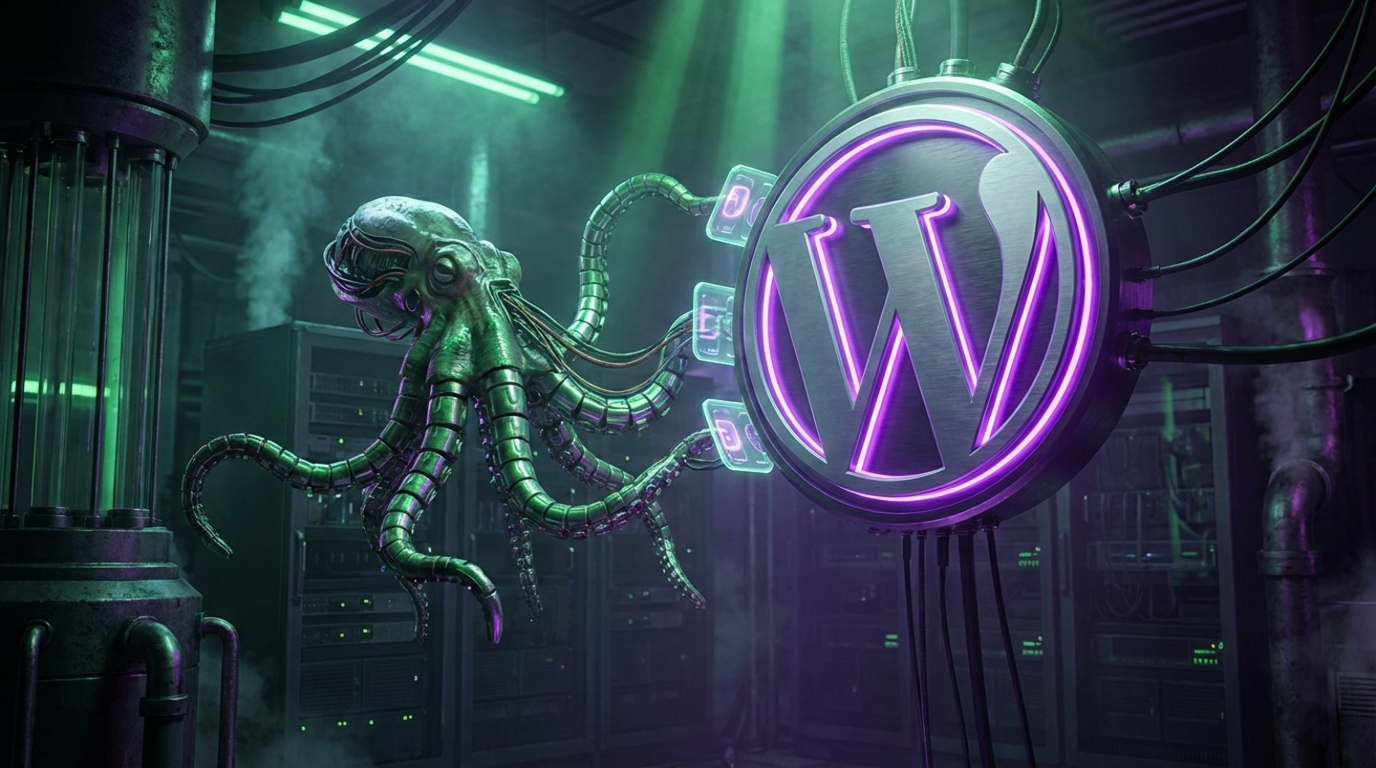
- Locate the System Prompt: You will see a prompt describing a “Green Octopus.”
- Customization:
- Delete the Octopus description.
- Insert your own visual anchor (e.g., “A futuristic cyber-cat,” “Steve Jobs in a neon suit”).
- The Edit Mode: In the MCP Image Tool, if Edit Mode is ON, the AI takes your logo (base64 encoded) and blends it into the banner. If OFF, it generates a generic image based on the prompt.
Phase 6: Distribution (Twitter & Dev.to)
Content sitting on a blog is useless without traffic. We auto-blast to social rails.
Twitter (X) Auto-Post
- Go to developer.twitter.com.
- User Auth Settings:
- App Permissions: Read and Write.
- Type of App: Web App.
- Callback URL: Paste the n8n OAuth Callback URL.
- Credentials: Copy Client ID and Secret to n8n.
- The Logic: The workflow summarizes the blog post into a 280-character hook and posts it with the link.
Dev.to (Backlinks)
- Go to your Dev.to Settings > Extensions.
- Generate an API Key.
- Add this to the n8n Header Auth credential (api-key).
- The workflow reposts the article to Dev.to with a canonical link back to your site (SEO safe).
Phase 7: Optimization & Scheduling
Running this 24/7 on the cloud costs money. Here is the optimization protocol:
- The Scheduler: By default, it runs every hour at minute 20.
- Cost Reduction:
- Disconnect the scheduler from Step 7 (Image) and Step 9 (Publishing).
- Connect the end of Step 6 directly to Step 7.
- This creates a linear chain: Ingest -> Write -> Image -> Publish.
- This reduces “cold start” overhead and minimizes n8n execution counts.
Result: A fully autonomous system that reads the news, writes a 1,500-word SEO-optimized article, generates a branded banner, publishes to WordPress, and tweets about it. Total human time invested daily: Zero.